This is an old revision of the document!
Speed-Quote Tutorials
How Do I Use the New Change Report?
The Change Report has been moved to the Speed-Quote client to make it more efficient and interactive for the user. The report will flag products for specified Retailer Quote Sheets where the Master Entry Sheet product information has been updated more recently than the Retailer Quote Sheet product information.
Creating a Change Report
1. Select the “Create Change Report” item from the “Reports” menu.
Click here to show the Create Change Report menu
2. Select which Retailer Quote Sheets to check.
Click here to show Select Quote Sheet dialog
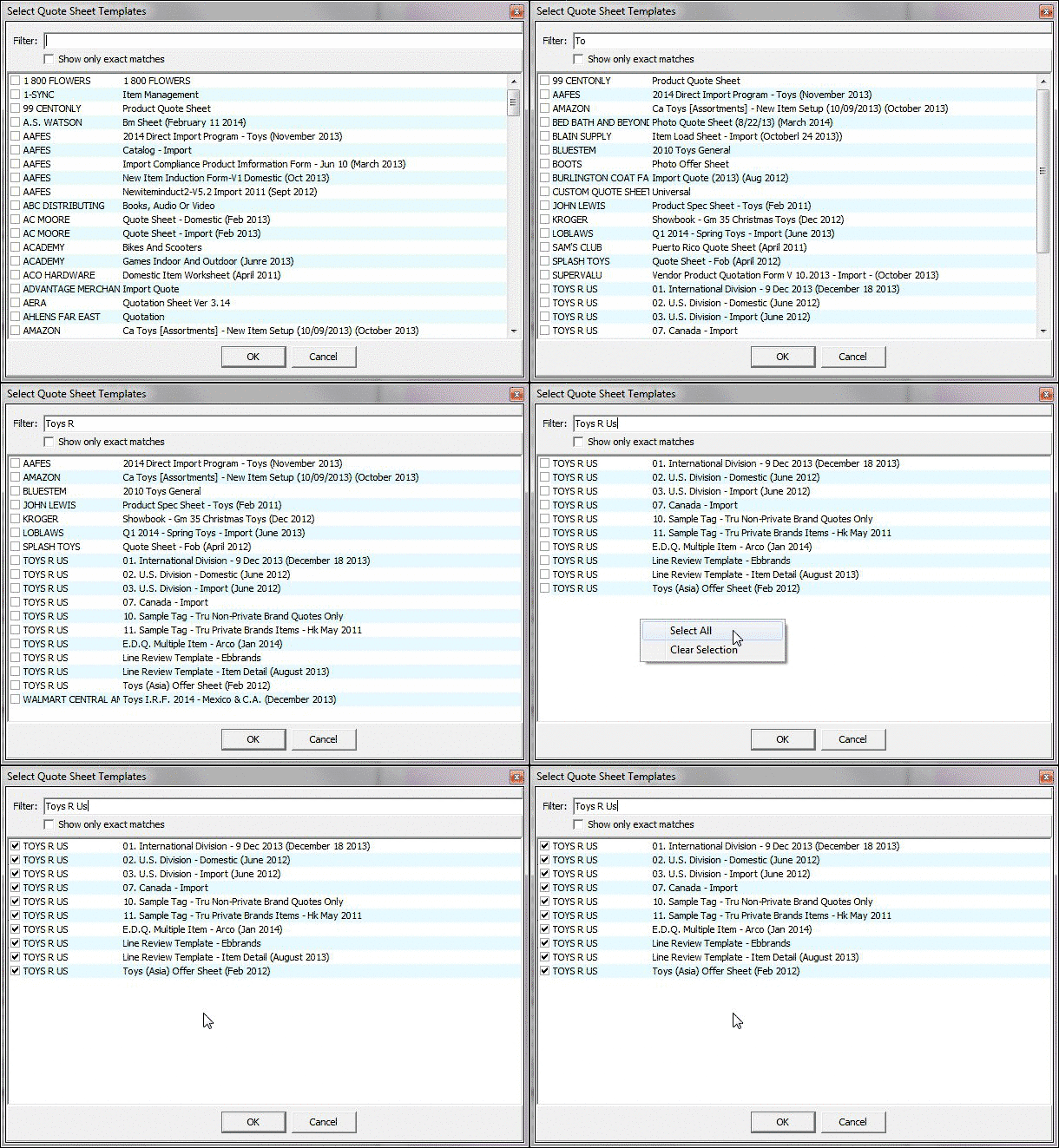
The Select Quote Sheet dialog shows all the Retailer Quote Sheet templates with products already created.
To show specific templates type in the “Filter” edit box to find templates with that text in the name.
Right-click on the list to get more options such as Select All.
<wrap important>The Change Report can take a long time to run if many Retailer Quote Sheet templates are selected. We suggest you start by running the report on 1 or 2 Quote Sheets.</wrap>
3. The Change Report will run in the sidebar and show it's progress.
Click here to show the Change Report Progressing
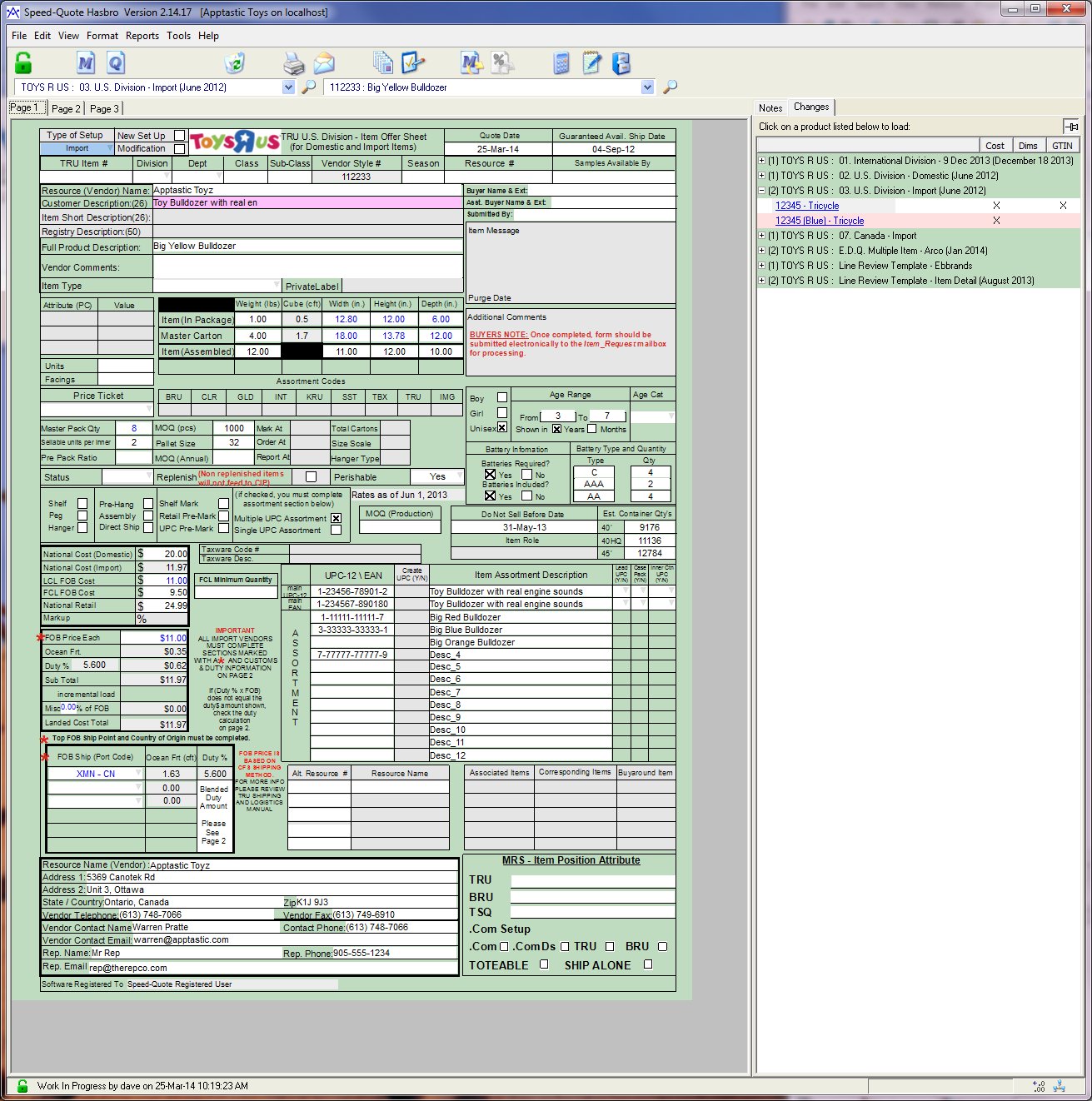
When the report is finished the progress indicator will disappear. The sidebar will show you each Retailer Quote Sheet template where changes were found along with the number of Quotes that had changes. You can view the changes for any template and the category of the change (e.g. Cost, Dims, GTIN). Clicking on any product will take you to that product.
Click here to show the Sidebar with Product Changes
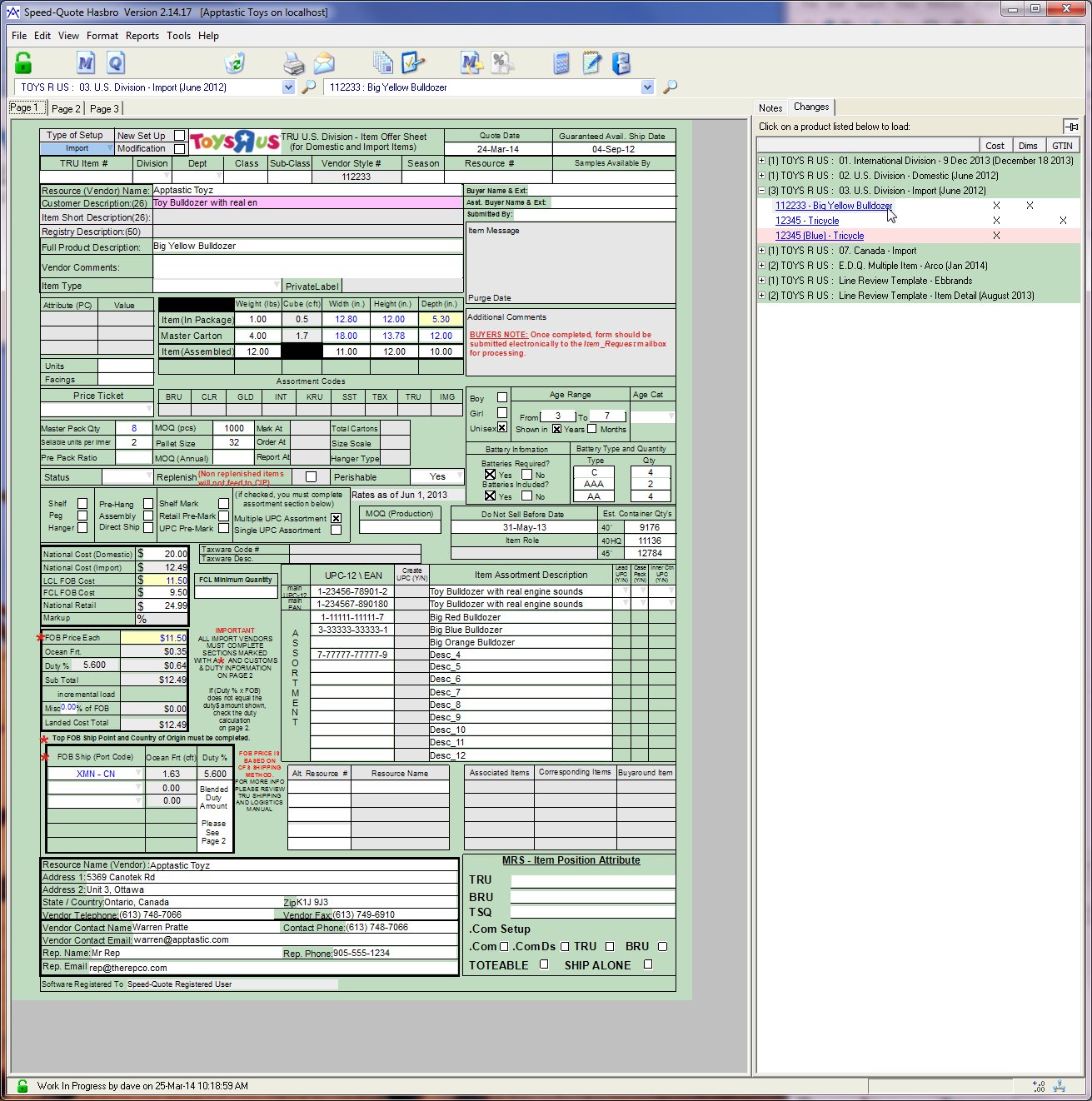
The sidebar shows product 112233 : Big Yellow Bulldozer has changes to the Cost and Dimensions categories. We can see the changes on the Retailer Quote Sheet as fields with yellow backgrounds. In this case, the Item Depth and LCL FOB Cost fields have changed.
<wrap tip>You can clear the Change Report results by right-clicking on the sidebar and selecting Clear.</wrap>
Click on the title of a column to sort by that column.
Show an example of sorting
Unsorted:

Sorted by GTIN:

Right-Clicking on the list will allow you to Clear the Report, Filter the Report, Show only products last updated by you
There are 3 sections to the popup menu:
“Clear Changes” will clear the report.
“Work in Progress”, “Locked” and “Quoted” allow you to filter the report by product status.
Uncheck “All Users” to see only the products last updated by you.

Once the changes are fixed, the product disappears from the sidebar.
The Item Depth and LCL FOB Cost fields have been updated to match the Master Entry Sheet (by clicking the Update From Master button) and so the change disappears from the sidebar.
<wrap tip>Manual changes to fields will not be reflected in the sidebar until the product is saved to the server. Product changes are automatically saved to the server when the user selects a new product. The user can force product changes to be saved by clicking on the Product Dropdown.</wrap>